Business
Bring your team into the same workspace
Invite colleagues, assign deliverables, and see how work is distributed.
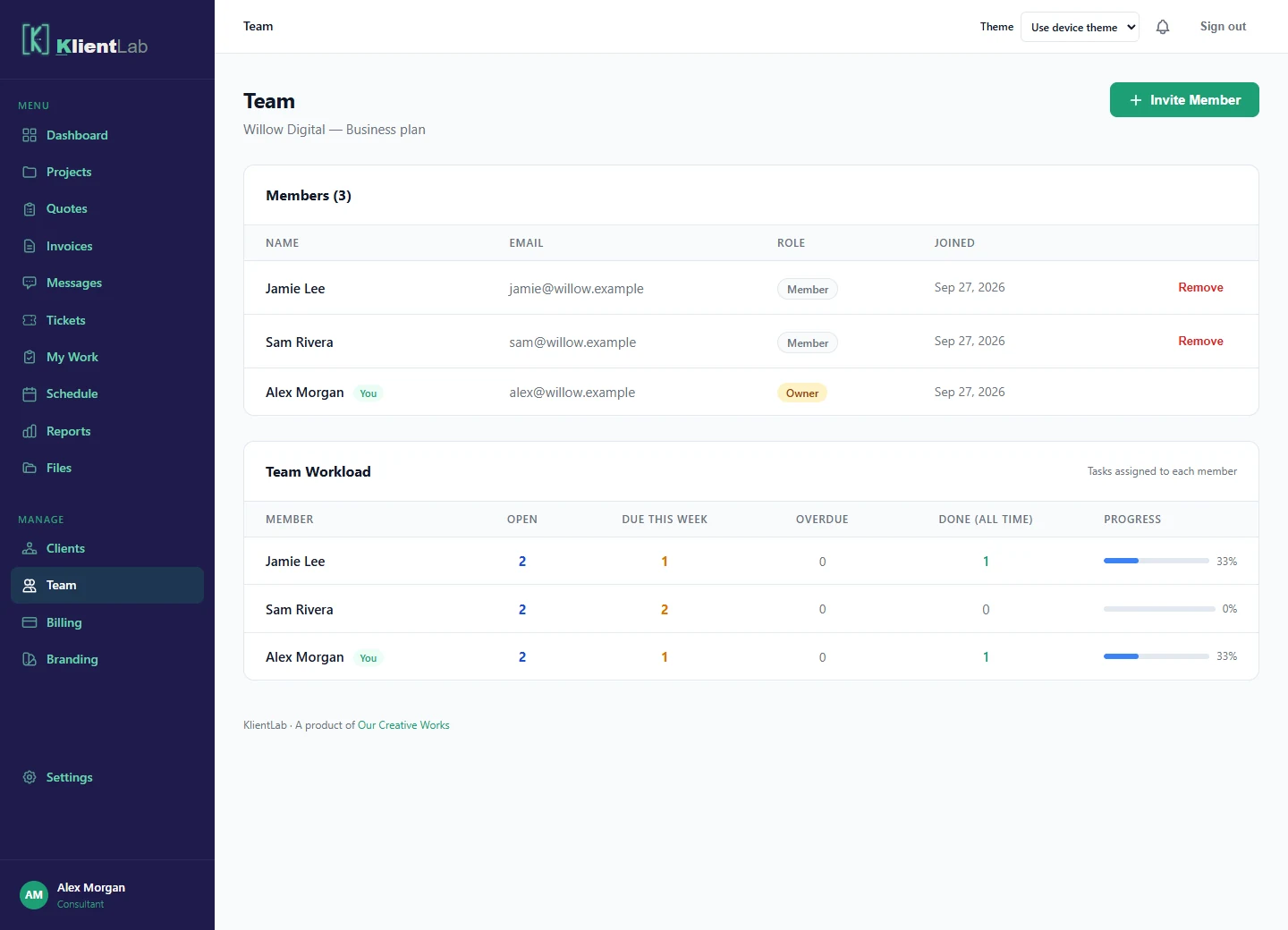
Invite a colleague
- Sign in as the workspace owner and open Team.
- Choose Invite Member, enter their email, and choose Send Invitation.
- The colleague follows the email link to join. Invitations expire after seven days.
- Check the member list after they accept; pending invitations are listed separately.
If the person already has an account, follow the invitation’s sign-in and acceptance flow. An account belonging to another workspace cannot simply be moved through an invitation.
Understand the access you are giving
A team member is a colleague working inside your shared business workspace. Members can work with the organization’s projects and clients; this is not a restricted guest role for one project. Invite customers through Clients, not Team.
| Person | Purpose |
|---|---|
| Workspace owner | Manages membership and workspace billing, in addition to client work. |
| Team member | Works with shared client records and project delivery. Does not receive owner-only billing or membership controls. |
| Client | Uses their client portal for the work and decisions shared with them. |
Assign the next deliverable
Open a project, select Phases, and add or edit a deliverable. Choose an owner, set a due date, and save. Use a specific outcome such as “Homepage design ready for client review.” A task owner tells the team who is responsible; it does not make the project private to that person.
Read the workload view
Open Team → Team Workload to compare open tasks, tasks due in the next seven days, overdue work, and completed tasks. The view counts assigned deliverables. It is a task summary, not an estimate of hours or a complete capacity forecast. Use it alongside a conversation about effort and availability.
Remove a member carefully
The owner can remove a member from Team. The confirmation explains that workspace records and open tasks transfer to the owner and the person loses workspace access. Review outstanding responsibilities before confirming. Removing a member is different from deleting the workspace or its client history.