All plans; invoice sending requires Pro or Business
Create a quote and collect a decision
Turn the scope and priced phases into a reviewable agreement.
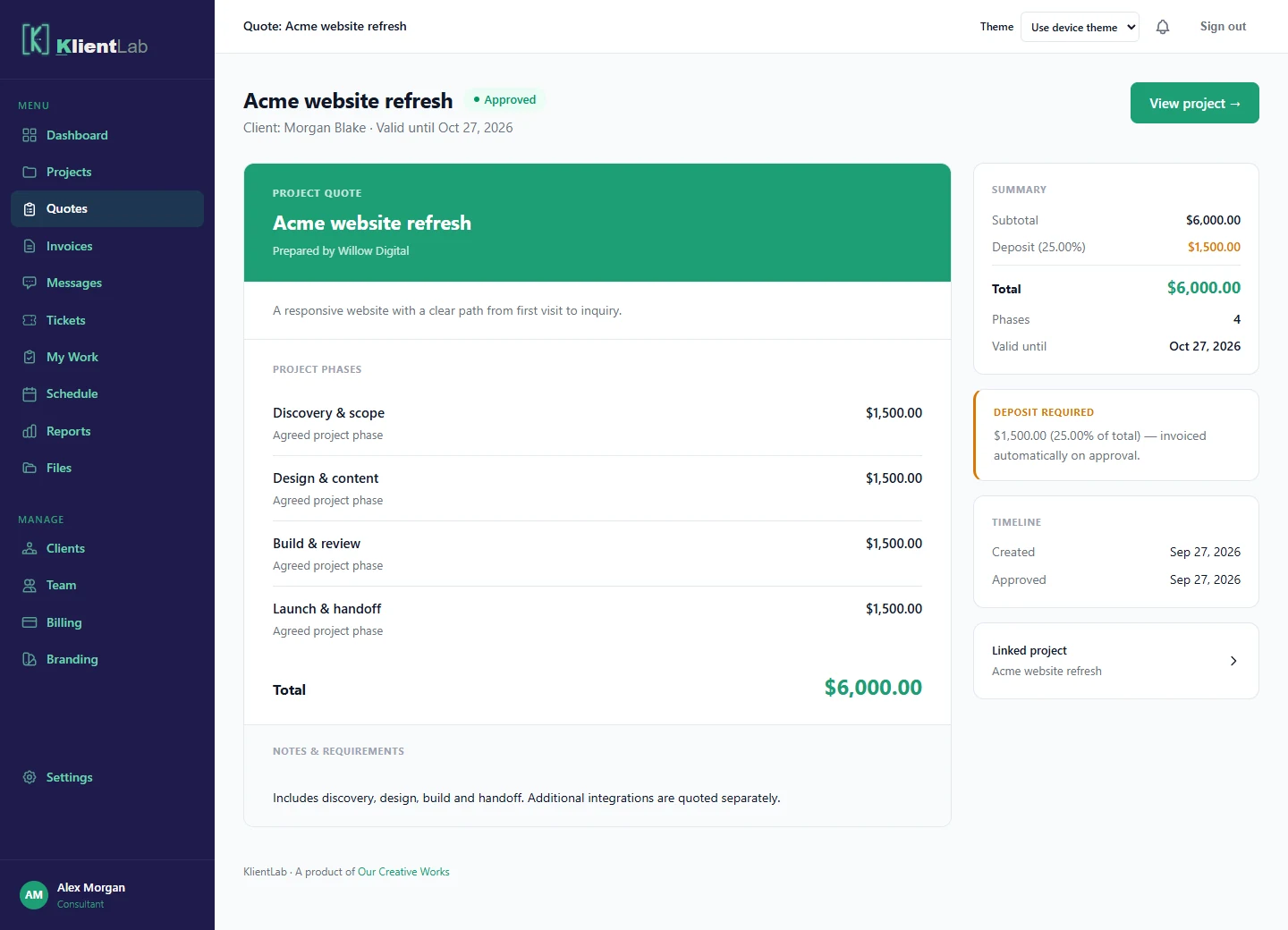
Build the quote
- Open Quotes and create a new quote.
- Select the client and enter a clear project title and scope.
- Add the priced phases, with dates where useful.
- Set an optional deposit and validity date. Describe exclusions and assumptions in the notes.
- Save and review the draft before sending it.
Saving a quote also creates a draft project and project phases. Avoid creating a duplicate project first.
Send it for review
Open the draft and choose Send to client. The assigned client signs in to review it, add a note, and approve or decline. A sent quote awaiting a decision is different from an approved quote; do not assume that sending it is acceptance.
After approval
Approval activates the related project and preserves the client’s decision. If the quote requires a deposit, approval creates a deposit invoice. On Pro or Business it is marked sent and is available in the client portal; on Free it remains a draft. The approval step does not send a separate invoice email or charge the client. Open the generated invoice to check its status and payment setup; use the available reminder or invoice link when you need to follow up.
When the scope changes
Use a change order for additional work after approval rather than treating an old quote as a moving agreement. If an unsent draft needs correction, edit it before sending. If a quote expires or the client declines, review the scope with them before issuing the next proposal.