Keep support in its own queue
The Client Tickets add-on brings requests, replies, and time entries together. Review unbilled time and turn it into an invoice.
$12/month or $120/year. Invoice sending requires Pro or Business.
Learn about ticketsA walkthrough of KlientLab
Follow one website project from an agreed scope to a client invoice. See how a small team keeps decisions, delivery, and the client experience connected.
Actual product screens. Fictional sample business and client. Features vary by plan.
01 / The agreement
A project should begin with a shared understanding. Put the work, priced phases, and deposit terms into a quote, then give the client a clear approval decision.
Quotes are available on every plan. Invoice sending requires Pro or Business.
Read the how-to guide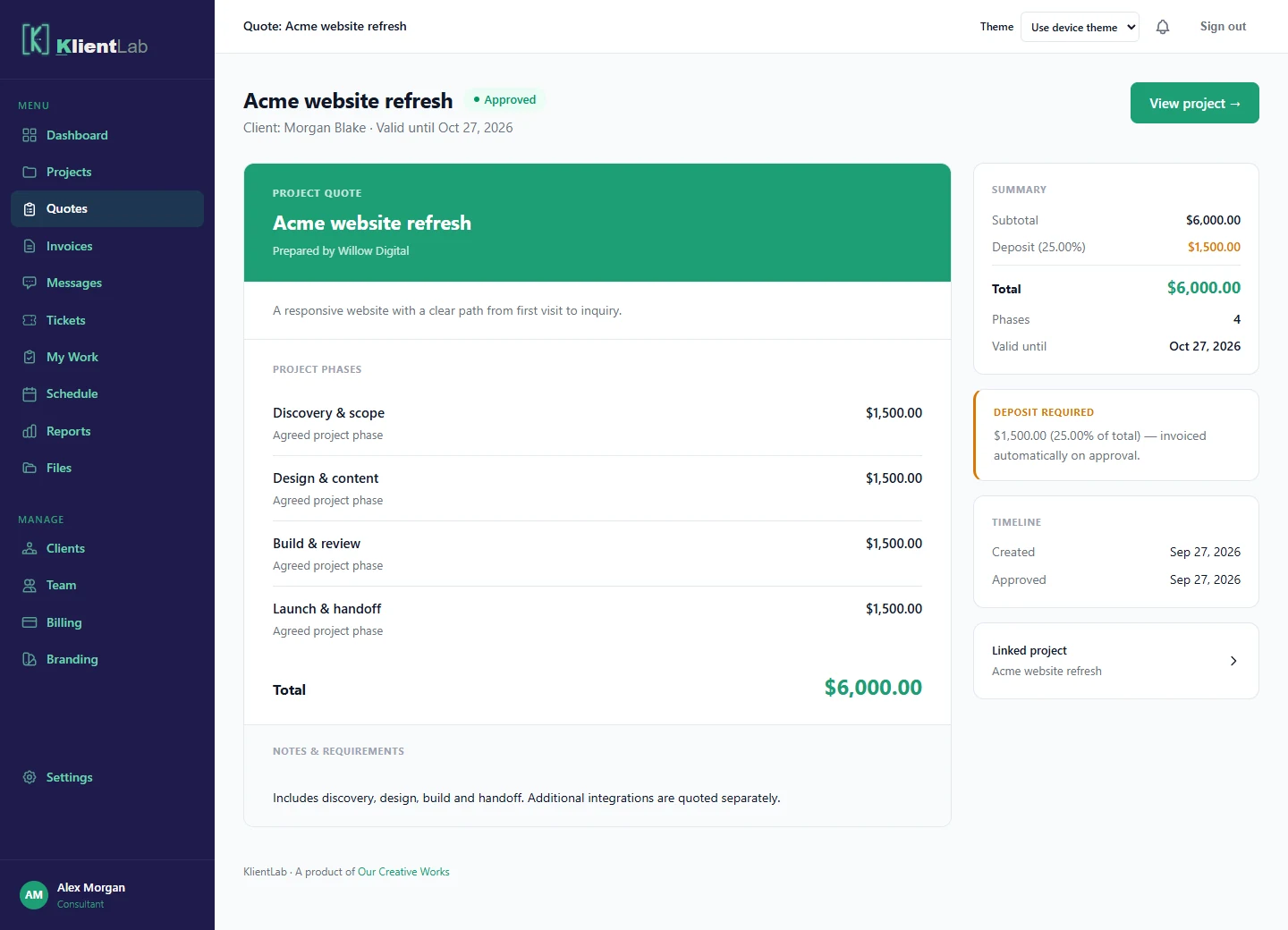
02 / Your team workspace
Bring your colleagues into the same workspace. Give deliverables named owners, then see who has open work, what is due soon, and where a handoff needs attention.
Team accounts and workload view are included in Business.
Read the how-to guide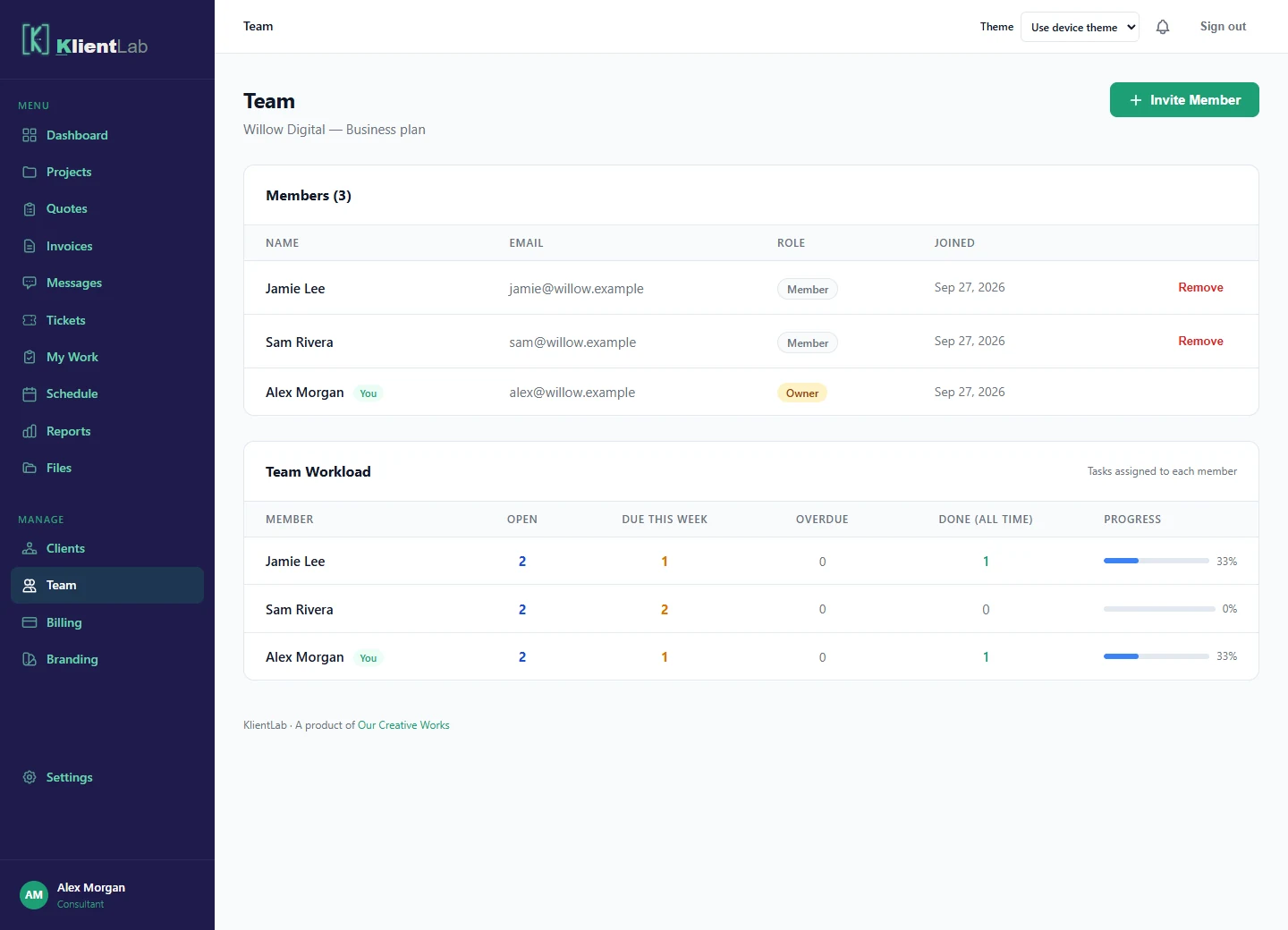
03 / The delivery plan
Build a delivery plan with phases, owners, dates, and clear statuses. Start from a website, IT rollout, or consulting template and adapt it to the agreement.
Project delivery is available on every plan. Business adds waterfall scheduling and Gantt charts.
Read the how-to guide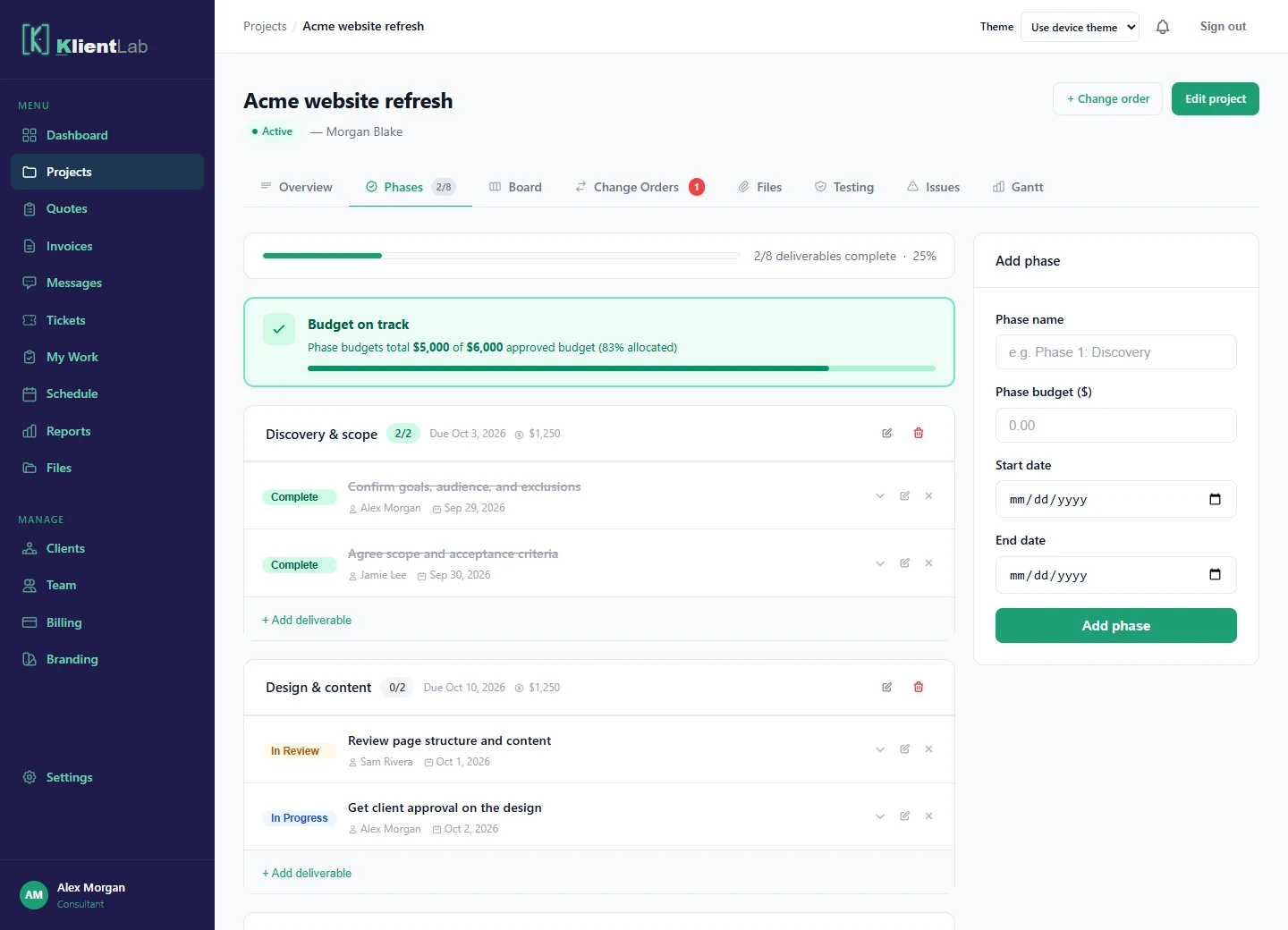
04 / The client experience
Your client gets their own portal to see the work shared with them, follow progress, and review decisions. It is a different view from the workspace your team uses.
Client portal access is included on every plan. Clients are invited at no extra cost.
Read the how-to guide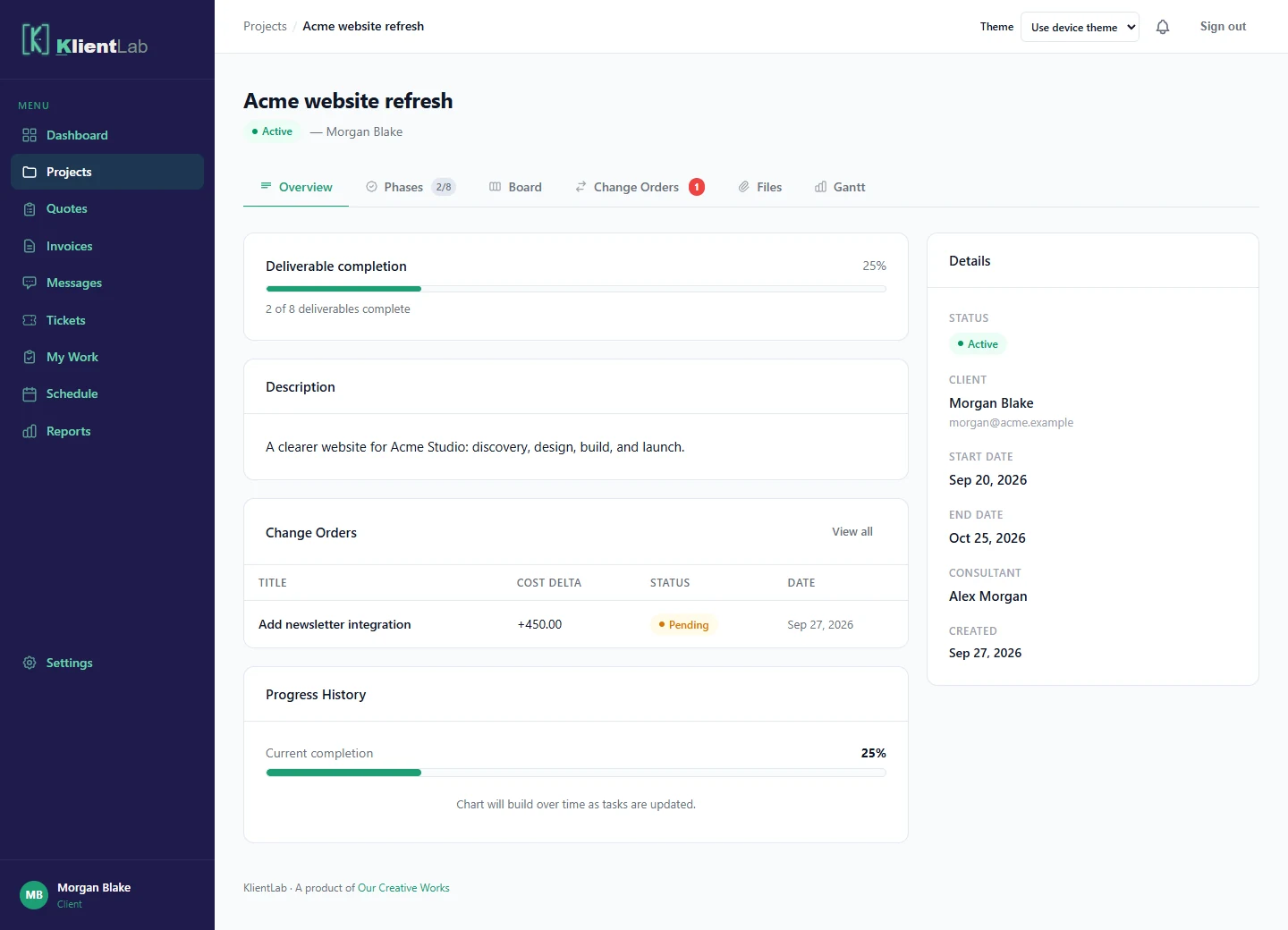
05 / The change request
A new integration does not have to become an invisible addition to the workload. Describe the request and its cost and timing impact, then ask the client to decide.
Change orders are included in Pro and Business.
Read the how-to guide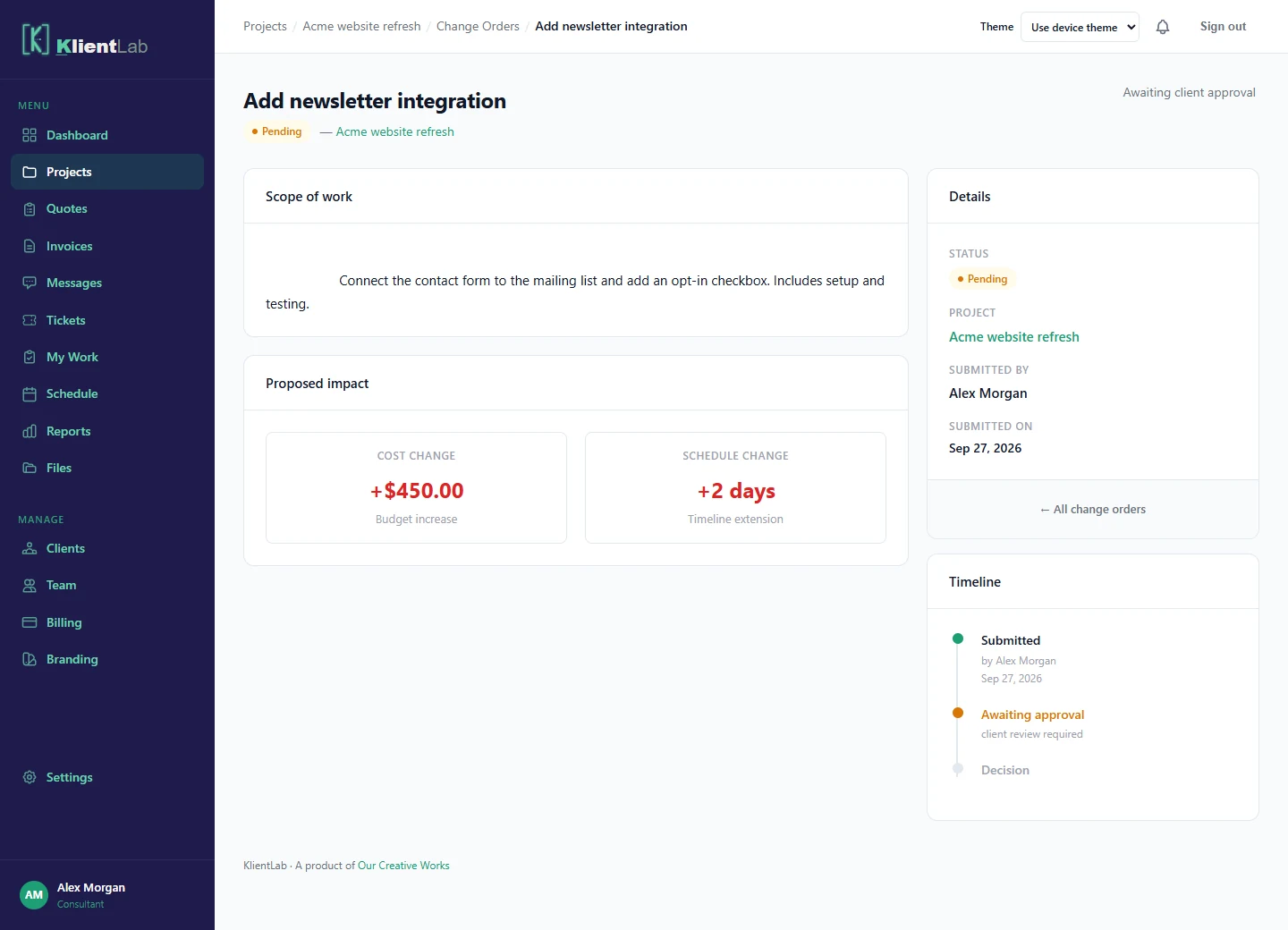
06 / The invoice
Prepare an invoice, review the line items, and send the client a payment link. Connect your Stripe account to collect online payments and keep payment status with the project.
Draft invoices are available on Free. Sending and payments require Pro or Business; Stripe setup and payment-processing fees apply.
Read the how-to guide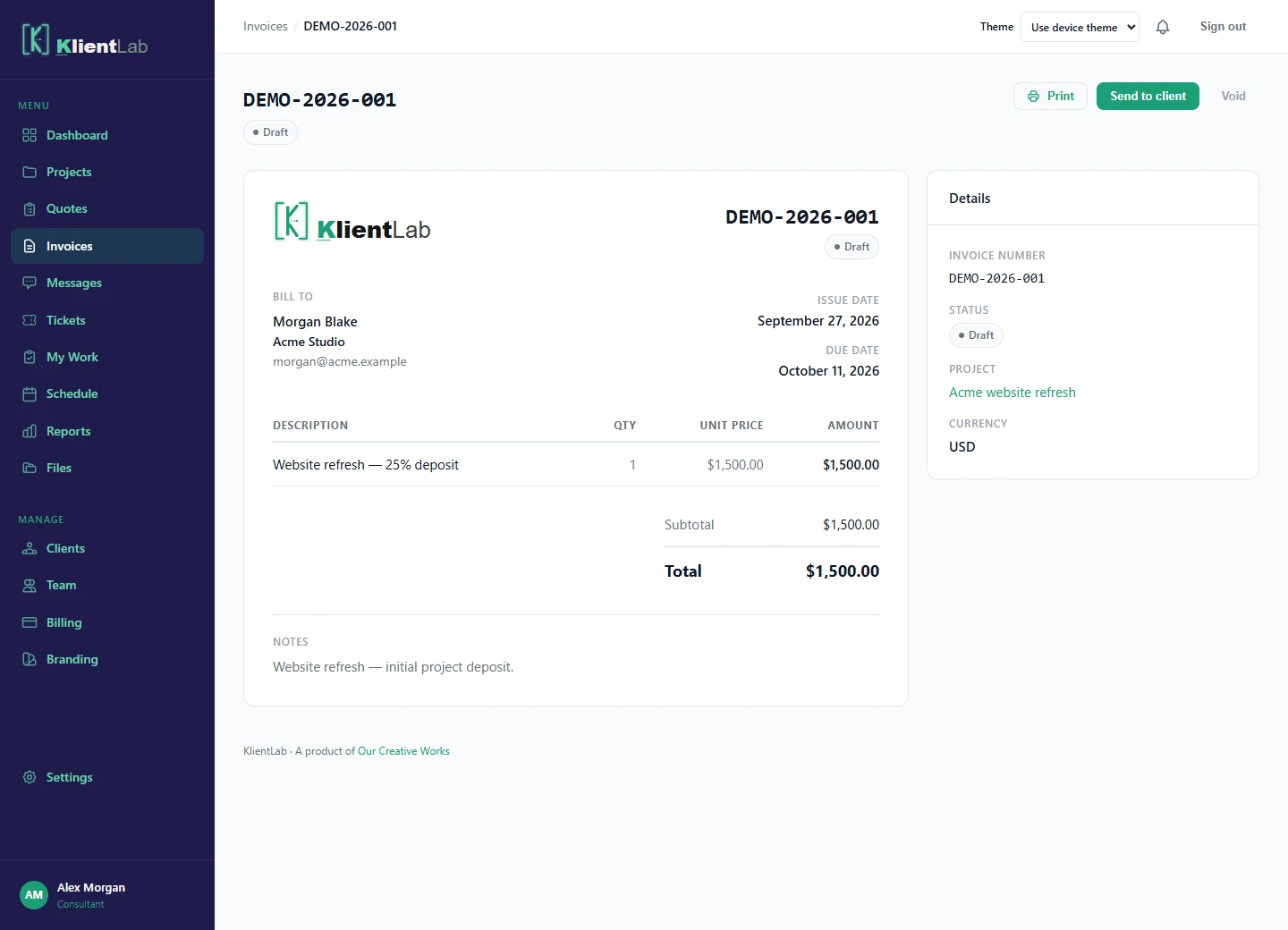
The Client Tickets add-on brings requests, replies, and time entries together. Review unbilled time and turn it into an invoice.
$12/month or $120/year. Invoice sending requires Pro or Business.
Learn about ticketsBusiness adds your company name, logo, and accent color. Each user can follow their device theme or choose light or dark.
Branding and workspace settingsShared files, messages, project testing, issue tracking, and reports help you follow the work beyond a task list.
Explore all 12 user guidesStart free with one active project and two clients. Choose Pro for solo delivery or Business when your team is ready to join.