Drafts on Free; sending and payments on Pro and Business
Send invoices and collect payments
Prepare clear invoices, connect Stripe, and track payment status.
Connect your payment account
In Settings, open the Stripe payment setup and complete the information Stripe requests. Return to KlientLab and confirm the connection is ready to accept payments. This connects the account receiving money from your clients; it is separate from Billing, where you pay for KlientLab.
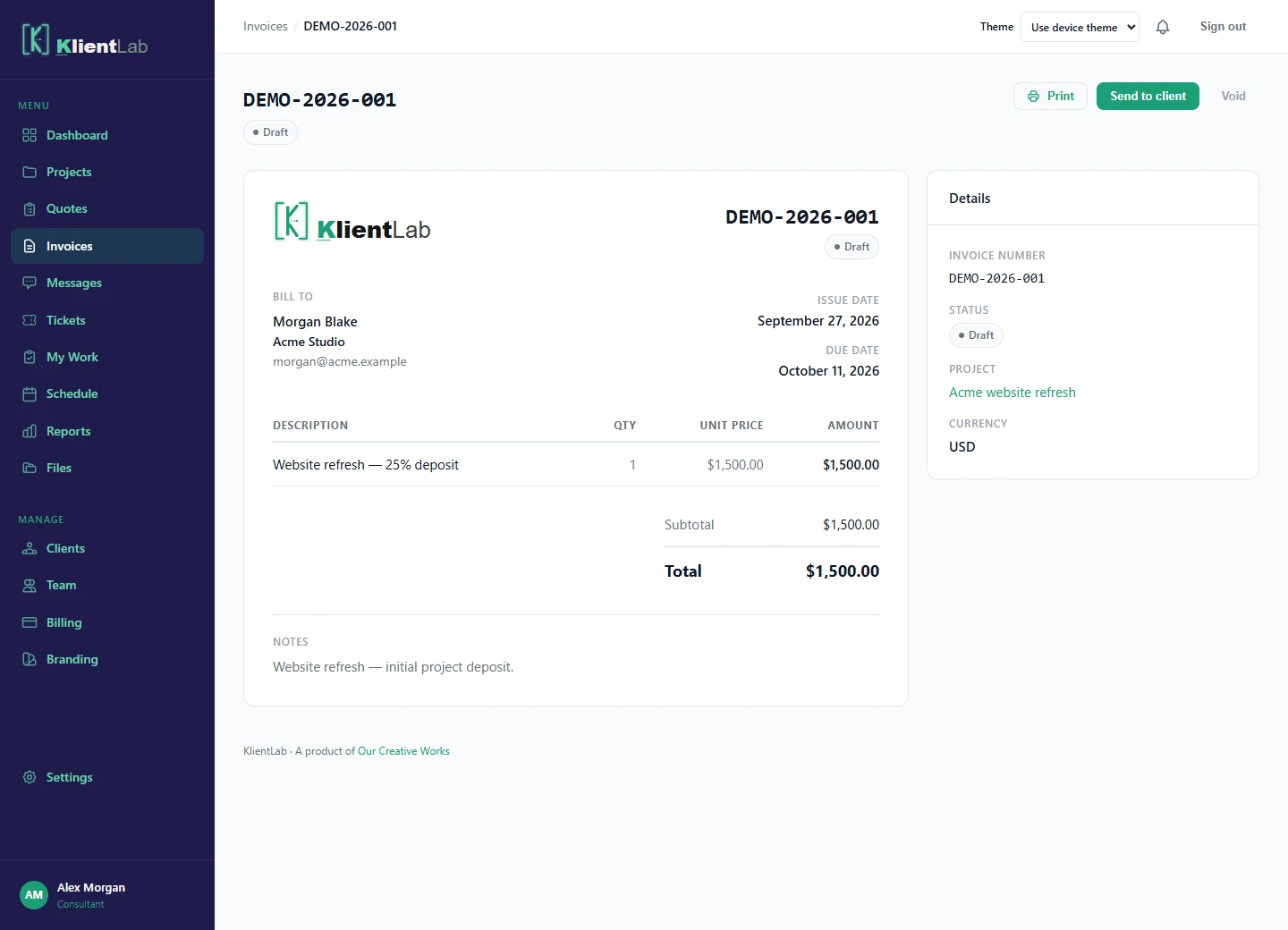
Create and review a draft
- Open Invoices → New invoice.
- Select the client and optional project.
- Enter the line items, quantities, prices, tax, and due date.
- Save, then check the client, currency, and total before sending.
Check any deposit invoice created from an approved quote too: on Pro or Business it is already marked sent, while on Free it remains a draft. A manually created draft has not been sent to the client.
Send the invoice
Open the invoice and choose its send action. The client receives an invoice link and can also find the invoice in their portal. Treat the public invoice link as private: anyone with it can view that invoice. Do not publish it on social media or a public page.
Understand payment status
A paid status appears after Stripe confirms payment. A client returning from checkout is not, on its own, proof of payment. If the client reports paying and the invoice still looks unpaid, check the Stripe payment record and contact support before asking them to pay again.
Correct or follow up on an invoice
Use the available reminder action for an outstanding invoice. Review the status before sending reminders. Voiding an invoice is not a refund. Handle any refund through the appropriate Stripe payment record and contact support if the KlientLab record needs clarification; do not assume a refund automatically changes the invoice.